The quick answer
Squarespace 7.1 has a setting called "Show export links" that adds Google Calendar and iCal (.ics) links to your events. It's off by default, and it's tucked inside the events section's design panel — not in Site Styles or page Settings, which is where most people go looking. Switch it on and the links appear on both your events list and every individual event page.
How to turn on "Show export links" (step by step)
- Open your Events page and click Edit.
- Hover over the events list, and in the little toolbar that appears, click Edit Section (the pencil icon) — not "Manage Events."
- A panel opens on the right. Stay on the Format tab.
- Scroll down to the Event Display group — past Show Thumbnails, Show Past Events, Date Style, Show Time, and Show Location.
- Toggle Show Export Links on, then Save.
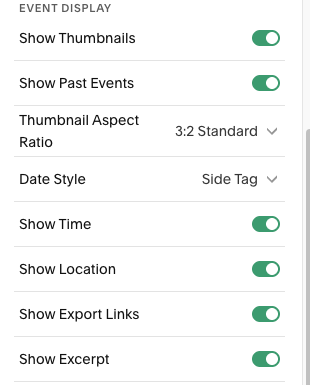
That's it. The "Google Calendar · ICS" links now appear on your events list and on each event page.
Why you couldn't find it
Three things make this setting easy to miss:
- It's context-sensitive. The option only appears while you're editing the Events page with an event visible — not in the site-wide Design or Style menus.
- It's in "Edit Section," not Site Styles. You have to open the events block's own section settings, which most people never click.
- It's below the fold. Even in the right panel, "Show export links" sits near the bottom of the Event Display list, so you have to scroll to reach it.
One more gotcha: it's tied to the standard list layout. If your events page is set to a calendar or grid view, switch it to the list layout and the toggle reappears.
What the export links actually do
With the setting on, each event shows small "Google Calendar" and "iCal" text links. Clicking one creates a calendar entry pre-filled with the event's title, date and time, and location.
The catch: what they leave out
They're better than nothing, but they're the bare minimum. Looking at the actual .ics file Squarespace generates, the saved calendar entry includes only the title, date/time, and location — with:
- No description. Whatever you wrote about the event doesn't come along.
- No link back to your event page. Days later, the reminder is a dead end — there's no way to click back to your site to RSVP, buy a ticket, or get the details.
- Tiny text links, not a button. The "Google Calendar · ICS" text is easy to miss, so far fewer people use it than would tap a clear button.
- Google and Apple only. No Outlook, Office 365, or Yahoo.
- Events pages only. You can't place these links on a regular page, a landing page, or a promo.
Want a real Add to Calendar button?
CalButton adds a brand-matched button with the full event details and a link back to your site — on any page, for every calendar. It even replaces these native export links in place.
See CalButton →Native links vs. a real button
If the bare Google and Apple links on your events page are all you need, that toggle is worth switching on. But if you want a button that carries your full event details, links back to your site, works anywhere on your site, covers every calendar, and matches your brand, you'll want to add one. We break down every option — free and paid — in our guide on how to add an Add to Calendar button in Squarespace.
Frequently asked questions
The bottom line
If your Squarespace event calendar links aren't showing, it's almost always the "Show export links" toggle sitting off in Edit Section → Format → Event Display. Turn it on and you'll get basic Google and Apple links. Just know what they are: a bare title-time-location entry, on your events pages only. For a real Add to Calendar button, CalButton picks up where the native links stop.